

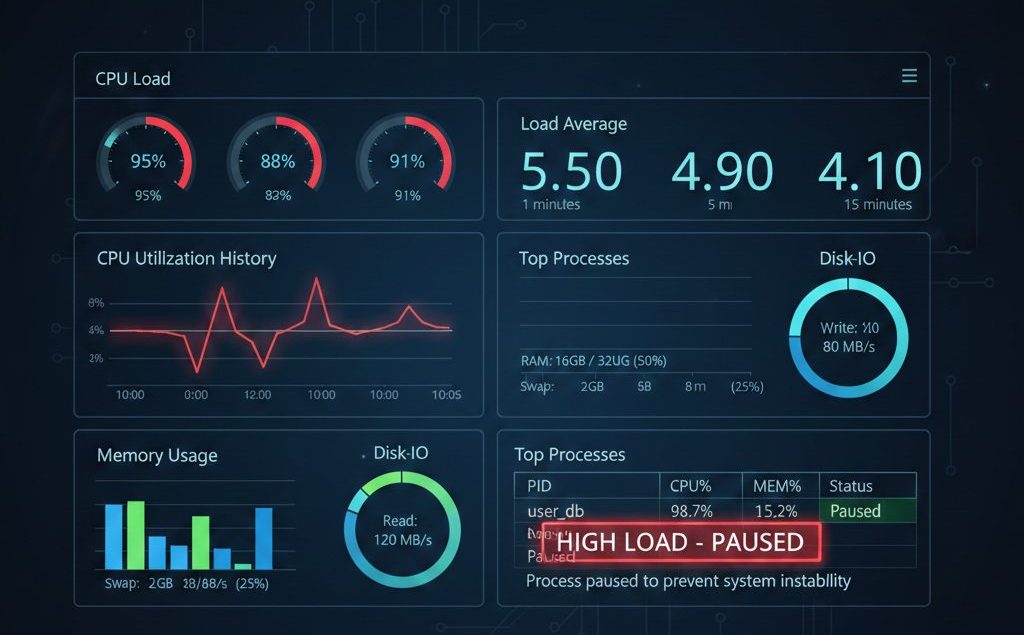
Running resource-intensive processes on a production server can significantly impact performance if system load becomes too high. Tasks such as backups, migrations, account packaging, or large-scale data processing can temporarily spike CPU usage and load average.
If these processes run without control, they may:
- Slow down websites
- Delay critical services
- Increase response times
- Trigger temporary outages
To prevent this, administrators can use CPUwatch, a utility available on cPanel servers, to run commands with a predefined load limit.
CPUwatch ensures heavy processes execute only when sufficient system resources are available — automatically pausing execution when load exceeds a safe threshold.
Understanding Server Load and Why It Matters
Before using CPUwatch, it’s important to understand load average.
Load average represents:
- The number of active processes
- Processes waiting for CPU time
- Processes waiting for I/O
On Linux servers, load values are typically shown for:
- 1 minute
- 5 minutes
- 15 minutes
As a general rule:
Load should not consistently exceed the number of CPU cores.
For example:
- 4-core server → Safe load ≈ 4
- 8-core server → Safe load ≈ 8
Running heavy scripts without monitoring load can degrade performance for live users.
What CPUwatch Does
cpuwatch monitors server load in real time while executing a command.
If load exceeds a specified threshold:
- The process pauses automatically
- CPUwatch continues monitoring
When load drops below the threshold:
- The process resumes execution
This dynamic load-aware behavior prevents resource contention and maintains production stability.
Example: Running pkgacct with CPUwatch
Suppose you want to create a full account backup using the pkgacct script, but only when server load is below 9.
Run:
/usr/local/cpanel/bin/cpuwatch 9 /scripts/pkgacct usernameHow It Works
- The backup process starts normally.
- If server load exceeds 9, CPUwatch pauses the script.
- When load drops below 9, execution resumes automatically.
- No manual intervention is required.
This ensures backups do not overload the server during peak traffic.
When to Use CPUwatch
CPUwatch is especially useful for:
- Large account backups
- Server migrations
- Bulk account creation or packaging
- Log rotation or processing
- Maintenance scripts
- Data import/export operations
- Scheduled administrative tasks
On shared hosting or high-traffic environments, this tool helps protect uptime and responsiveness.
Benefits of Using CPUwatch
Using CPUwatch provides several operational advantages:
Prevents Server Overload : Heavy processes no longer compete aggressively with live traffic.
Protects Website Performance : User-facing services remain responsive even during maintenance tasks.
Reduces Risk of Downtime : Automatic pausing prevents resource exhaustion.
Enables Safe Background Operations : Maintenance tasks can run safely without constant supervision.
Supports Automation : CPUwatch integrates well with cron jobs for controlled scheduling and automation.
Best Practice Recommendations
To maximize effectiveness:
1. Choose an Appropriate Load Threshold
Base the threshold on:
- Number of CPU cores
- Available RAM
- Type of workload
Start conservatively, then adjust gradually.
2. Monitor During Initial Runs
Observe:
- CPU usage
- I/O wait
- Memory consumption
- Load spikes
This helps refine your threshold.
3. Combine with Cron Jobs
CPUwatch works well with scheduled tasks:
0 2 * * * /usr/local/cpanel/bin/cpuwatch 6 /path/to/script.shThis ensures maintenance runs during off-peak hours and respects load limits.
4. Avoid Overly High Load Values
Setting a threshold too high defeats the purpose. The goal is to protect production services, not push the server to its limits.
Common Mistakes to Avoid
- Setting load threshold equal to peak capacity
- Ignoring I/O bottlenecks
- Running multiple CPUwatch processes simultaneously
- Failing to monitor long-running tasks
Even load-controlled processes require oversight.
Conclusion
CPUwatch is a simple yet powerful tool for managing resource intensive tasks on cPanel servers. By defining a safe load threshold, administrators can ensure heavy processes run only when system resources allow.
This approach protects uptime, maintains responsiveness, and enables safe execution of essential maintenance tasks without compromising production stability.
Frequently Asked Questions
Is CPUwatch available on all Linux servers?
CPUwatch is available by default on cPanel servers. On non-cPanel systems, similar behavior may require custom scripting.
Does CPUwatch limit CPU usage directly?
No. CPUwatch does not throttle CPU. It pauses execution when system load exceeds the defined threshold.
Can CPUwatch prevent all performance issues?
No. It helps manage load-aware execution but does not replace proper capacity planning, monitoring, or scaling strategies.
If you require help, contact SupportPRO Server Admin
Facing issues?
Our technical support
engineers can solve it.


