


Nowadays Google Drive is the most commonly used service to store our files as a cloud. Here in this article, it explains how to backup directories to Google Drive using bash script and API.
1. Install Google Drive on the server
Use the following link to download Google Drive:
https://drive.google.com/open?id=1P2J2HObqDtIjB07yvotE4mzml4tjC4ot
2. Then move this file to “/usr/sbin/” folder.
[root@redhat ~]# mv drive /usr/sbin/drive3. Assign the correct permission to the file.
[root@redhat ~]# chmod 755 /usr/sbin/drive4. Now run the file “drive”.
[root@redhat ~]# cd /usr/sbin/

[root@redhat ~]# ./drive
You will get a link like this asking for a verification code.
Go to the following link in your browser:
https://accounts.google.com/o/oauth2/auth?client_id=367116221053-7n0vf5akeru7on6o2fjinrecpdoe99eg.apps.googleusercontent.com&redirect_uri=urn%3Aietf%3Awg%3Aoauth%3A2.0%3Aoob&response_type=code&scope=https%3A%2F%2Fwww.googleapis.com%2Fauth%2Fdrive&state=stateEnter verification code.
Go to the above link on the browser (URL should vary while running the script each time).
Sign in using a Google account and click on ‘Allow’, you will get the verification code as shown below.
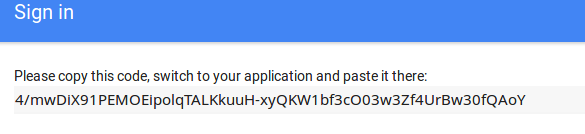
Type verification code and hit Enter.

5. Create a backup script
[root@redhat sbin]# vim bkupload.shThe backup script is as follows:
#!/bin/sh

# To take backup as tar for a directory

tar -zcf "dir-backup-$(date '+%Y-%m-%d-%H-%M-%S').tar.gz" /root/test

# To encrypt the backup tar file (if needed)

#openssl aes-256-cbc -a -salt -in "dir-backup-$(date '+%Y-%m-%d-%H-%M-%S').tar.gz" -out "dir-backup-$(date '+%Y-%m-%d-%H-%M-%S').tar.gz.enc" -pass 'pass:123456'

# To remove the original tar file (if needed)

#rm -rf "dir-backup-$(date '+%Y-%m-%d-%H-%M-%S').tar.gz"

# To upload to Google Drive

drive upload --file "dir-backup-$(date '+%Y-%m-%d-%H-%M-%S').tar.gz" -p 1XiaelkGjGkvC-FpM6HrKHFt7l7_zsADG
Here, “1XiaelkGjGkvC-FpM6HrKHFt7l7_zsADG” is the folder ID that we get from Google Drive URL.

6. Set the correct permission to the script file.
[root@redhat sbin]# chmod 755 bkupload.sh
7. Now execute the script.
[root@redhat sbin]# ./bkupload.sh

Once the backup script is executed, you can see that the backup is correctly uploaded to Google Drive as follows:
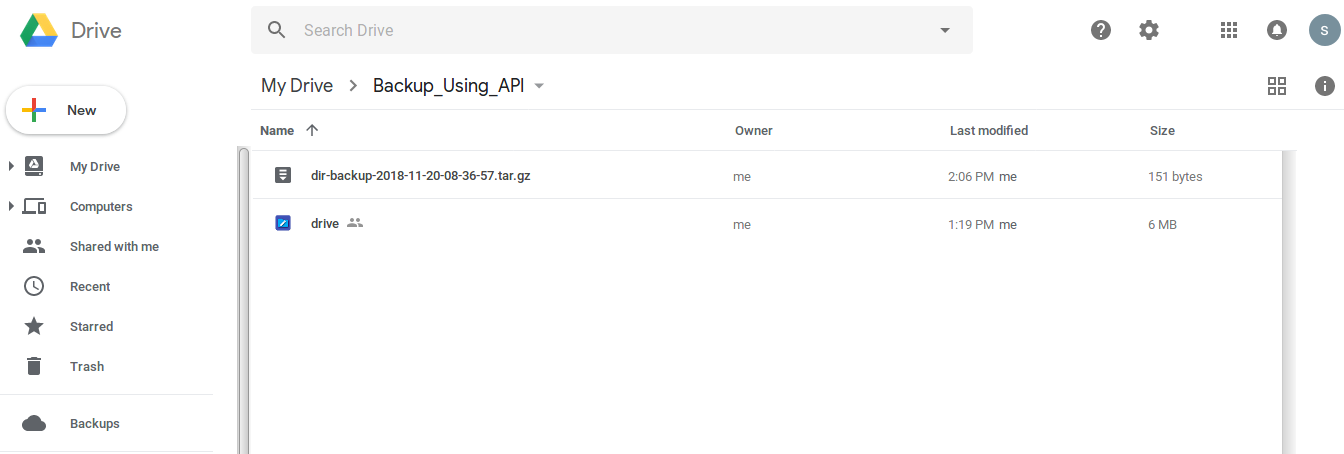
We can schedule this script on crontab for auto backup.
FAQ
1. How can I back up files to Google Drive from CentOS?
You can use a bash script along with a Google Drive CLI tool and API authentication to upload backup files automatically.
2. Can I automate Google Drive backups in Linux?
Yes, you can schedule the backup script using cron jobs to run at specific intervals.
3. Is it possible to encrypt backup files before uploading?
Yes, you can use tools like OpenSSL to encrypt backup files before uploading them to Google Drive.
4. What is the use of the folder ID in Google Drive backup?
The folder ID specifies the destination folder in Google Drive where the backup files will be uploaded.
5. Does this method work for RedHat as well?
Yes, the same process works for both CentOS and RedHat systems.
Automate your backups and keep your data safe in the cloud – get started today!
Facing issues?
Our technical support
engineers can solve it.


