

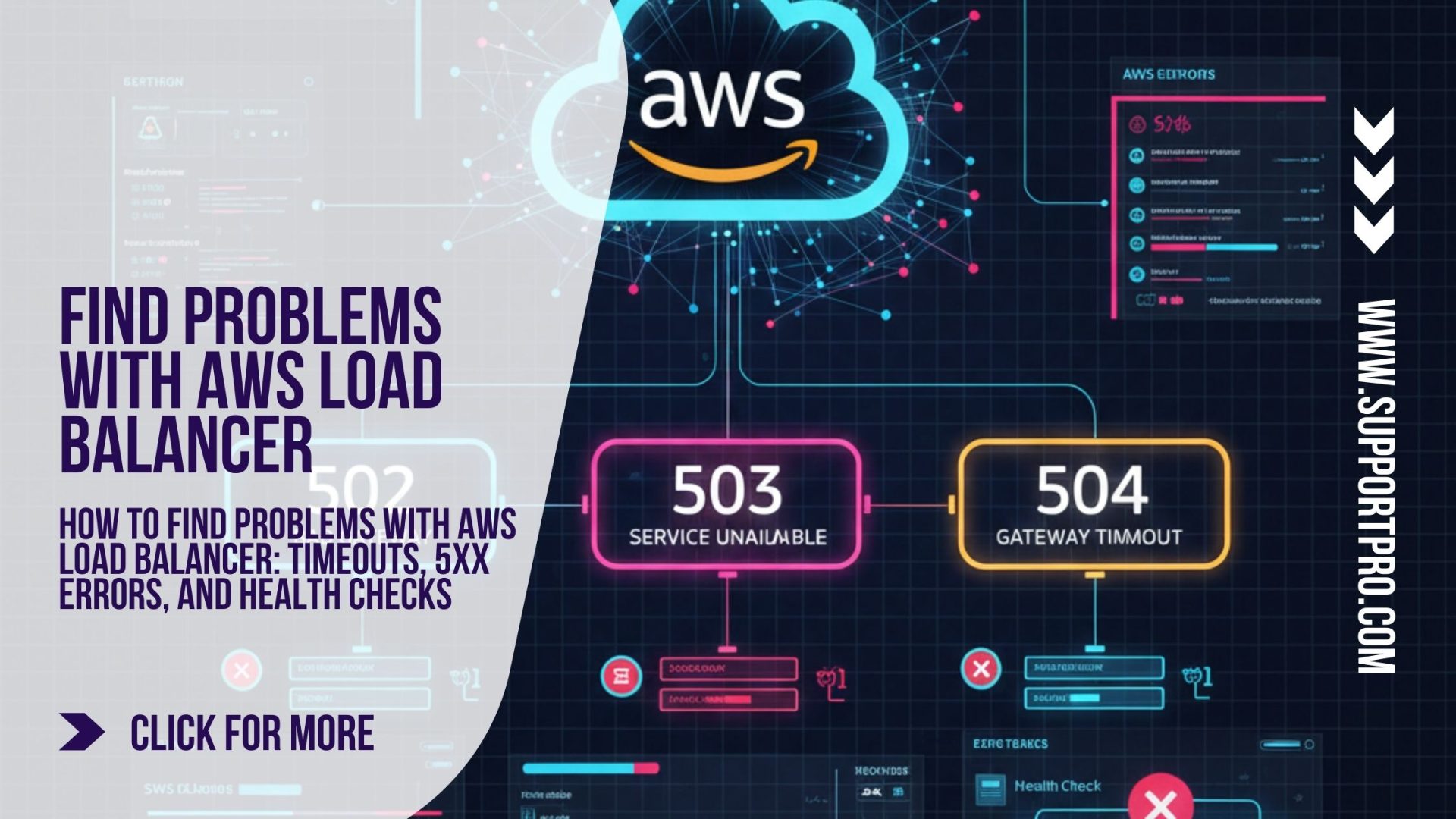
It’s easy to forget about the load balancer when everything is going well on AWS. But you know how important it is as soon as you start to see wrong responses, weird typos, or health checks that don’t work. A misconfigured health check or a backend server that couldn’t keep up has stopped projects in their tracks. In this post, I’ll walk through AWS Load Balancer troubleshooting, covering common issues with AWS Elastic Load Balancers (ELB, ALB, and NLB), what typically causes them, and proven ways to fix them.
1. Requests that take too long
In most cases, a timeout means the load balancer is taking too long to pass the request to your backend service. During AWS Load Balancer troubleshooting, this is often mistaken for a load balancer issue, but the root cause is usually one of the following:
Slow backend responses: If your application or database is slow, the load balancer can’t do much to help. In many cases, these issues are resolved by optimizing queries, improving application performance, or scaling out by adding more instances.
ELBs have a default idle timeout of 60 seconds. You need to change this or the client/server settings if your program needs longer connections.
Database bottlenecks cause a lot of problems. One of the teams I worked with had a query that locked up the database, which caused the load balancer to cease working.
Traffic spikes: When a lot of users use a server, it can grow too busy even if it’s running well. In this case, Auto Scaling is helpful.
5XX Errors (500, 502, 503, 504)
These error codes suggest that the server had a problem. Each one has a narrative that’s a little different:
- 500 – Internal Server Error: This usually means that the software crashed or did something wrong. Start with the logs.
- 502: Bad Gateway: The load balancer couldn’t connect to the backend at all. This happens a lot when the security group’s rules are improper or the service isn’t listening on the right port.
- 503: Service Not Available: There aren’t any good examples. Either all of them failed health checks, or there aren’t enough working servers.
- 504 – Gateway Timeout: The server took too long to respond. When APIs or queries take a long time to respond, this happens a lot.
In my experience, 502s and 503s are the worst because fixing them usually means going over security rules, target groups, and instance health again.
3. Failures of Health Checks
It’s easy to run health checks. The load balancer sends a ping to a port or URL, and if the instance doesn’t answer correctly, it is designated as unhealthy. But I’ve seen a lot of teams mess up due of little things like this:
The health check points to /, however the app only works on /status.
The app works, but the firewall won’t let traffic from the load balancer through.
A service is “up,” but it’s not listening on the appropriate port.
If health checks are failing, you should always start by manually checking the endpoint (curl -v http://instance:port/status) to determine what the app is truly sending back.
How I Usually Fix Things
This is usually how I do it:
- Look at CloudWatch Metrics – The first sign is the delay, the amount of requests, and the 5XX errors. If latency is going up a lot, it’s probably because of the backend. Health checks are what lower the number of healthy hosts.
- Check the Access Logs. To find out what’s really wrong, look at the logs for the load balancer. I found a 504 problem that was appearing by looking at the logs and noting that one API request was taking 90 seconds.
- Find out more about NACLs and Security Groups.
Make that your instances can talk to the load balancer and get a response. It’s easy to notice restrictions that weren’t set up correctly and only block one AZ.
- Look at the back end Right away
You can check if you can reach the service with curl or telnet. If it doesn’t work, the ELB isn’t to blame; your software or host is.
- Take a look at Resources and Auto Scaling
If your servers are consistently overloaded, you can either add more instances (scale out) or increase instance capacity (scale up). However, during AWS Load Balancer troubleshooting, it’s important not to overlook the database, as it’s often the real bottleneck behind performance issues.
In short, AWS Load Balancer troubleshooting can be challenging because the symptoms often look the same—timeouts, 502 errors, or intermittent failures—while the underlying causes vary widely. To resolve issues effectively, you need to methodically review metrics, logs, network connectivity, and configuration settings one step at a time.
What does it mean when things start to go wrong? With the right AWS Load Balancer troubleshooting approach, you can quickly understand what’s happening by using AWS tools such as CloudWatch, access logs, and health checks. By applying proper scaling strategies and regularly validating your configurations, you can resolve most issues before users ever notice them.
No matter if it’s a timeout, a 5XX error, or a failed health check, the answer is nearly always the same: keep an eye on your app while it’s busy and make sure your backend is healthy.
Need a quick fix? The SupportPRO team is always available to deliver fast, expert solutions and keep your AWS infrastructure running smoothly.
Partner with SupportPRO for 24/7 proactive cloud support that keeps your business secure, scalable, and ahead of the curve.


