


Configuring remote backup destinations in JetBackup is a great way to ensure that your backups are stored offsite, providing an extra layer of redundancy and protection. Below are the general steps for configuring remote storage options like AWS S3, Google Drive, and FTP.
1. AWS S3 Configuration
- Prerequisites: You’ll need AWS S3 credentials (Access Key ID and Secret Access Key) and a bucket created in your S3 storage.
Steps:
- Log into WHM (Web Host Manager).
- Navigate to JetBackup > Destinations.
- Click on Add New Destination.
- Select Amazon S3 from the available destination types.
- Please enter the Bucket Name, Access Key ID, and Secret Access Key from your AWS account.
- Now choose the Region where your S3 bucket is located.
- Optionally, you can set an S3 Path to organize backups within your bucket.
- Save the configuration.
Additionally, JetBackup offers the ability to add a Custom Vendor. If the S3 Provider is not visible when choosing a vendor, please be aware that you can add your S3-compatible destination as a Custom Vendor. Please be aware that in order to use Custom Vendor with JetBackup, it must be completely S3 compatible. You will need the extra Endpoint field if you decide to use a custom vendor. Please be aware that JetBackup uses the Region below to automatically update the endpoint. Instead of using the actual region, the endpoint’s proper format will use {region}. If you need assistance with configuring custom vendors or S3-compatible storage, visit SupportPRO
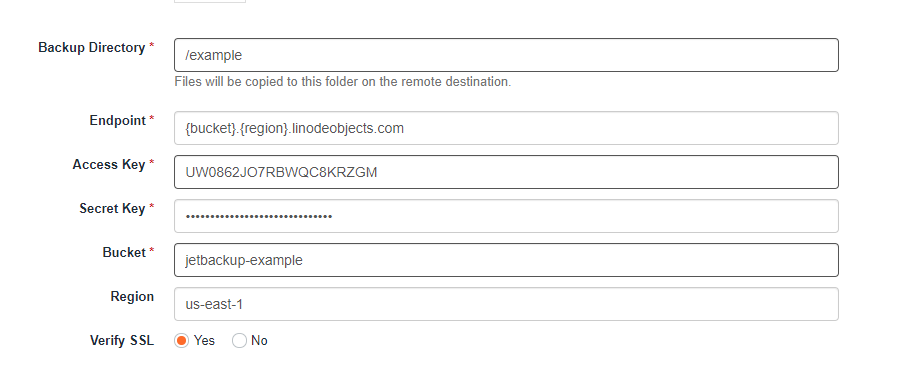
When we try to connect the destination, JetBackup will automatically take the Region and you can replace the {region} within the inputted field whenever needed. For custom endpoint configurations, you can also specify {bucket} depending on the endpoint format you have. This is’nt required for most S3 destinations. Example Custom Vendors:
- MinIO (self-hosted)
- Linode Object Storage
- Backblaze
Note: It has become more and more clear after carefully reviewing these reports, as well as our development team’s ongoing research and comparisons with other S3 providers, that Backblaze B2 does not meet the needs of our application. Therefore, we feel that formally designating Backblaze B2 as an unsupported destination is in the best interests of our clients. You can technically use “Backblaze” as a Custom Vendor, but their S3 access key creation procedure is a little different.
As an unsupported destination, JetBackup will no longer offer technical support for Backblaze B2 issues and does not advise using it as a destination.
2. Google Drive Configuration
- Prerequisites: You’ll need to authenticate using your Google account and allow JetBackup access to your Google Drive.
Steps:
- Go to WHM and then to JetBackup > Destinations.
- Click on Add New Destination.
- Select Google Drive from the destination types.
- You’ll be prompted to sign in to your Google account and grant permission to JetBackup.
- Once authenticated, select the folder in your Google Drive where you want backups to be stored.
- Save the configuration.
3. FTP/SFTP Configuration
- Prerequisites: You’ll need the FTP/SFTP server details like the hostname, username, password, and directory to store the backups.
Steps:
- In WHM, go to JetBackup > Destinations.
- Click on Add New Destination.
- Select FTP or SFTP from the list of available destinations.
- Fill in the FTP server’s hostname, username, and password.
- Set the Backup Path to the folder where backups should be stored.
- Configure the Port (default for FTP is 21, and for SFTP is 22).
- Save the configuration.
Note: Hetzner can be created as an FTP or SSH destination. If you are facing any difficulties while adding the Hetzner destination please note that The backup directory for the Hetzner storage box should give an absolute path. Kindly use ./test instead of /test and check. Also note that you will need to use port “23” for the Hetzner destination.
4. Other Configurations
- Encryption: You may want to enable encryption for your backups if you need an extra layer of security for sensitive data.
- Bandwidth/Speed: If you have specific bandwidth or speed requirements, you can adjust these settings within the destination configuration.
- Retention: Set retention policies to ensure that old backups are automatically deleted after a certain period, helping to manage storage space.
Once these remote destinations are configured, you can easily set JetBackup to store your backups offsite, ensuring data security and accessibility in case of server issues.
Need expert help? Explore our other technical guides or reach out to us for assistance!


