

Introduction
It can be disconcerting to see your application still unavailable or down, even when AWS shows all services as working. This typically indicates that your application stack, settings, or dependencies are the source of the issue, even while the AWS infrastructure is sound. Although AWS guarantees the availability of services like EC2, RDS, ELB, etc., the configuration and connectivity of these services determine the availability of your application.
1. Check EC2 Instance Health & Status:-
- Access the AWS console.
- Search for the EC2 Instance
Kindly verify the instance state.
A. Instance state >> Running
B. Status checks >> 2/2 checks passed
- If it’s failed,
A. Restart the instance
B. Check system & instance status checks

2. Verify Application Service Is Running
Why is this required?
Sometimes the server is accessible and up, but the application should be stopped or crashed.
- systemctl status nginx
- systemctl status apache2
- systemctl status tomcat
- systemctl status node-app
Kindly check it and restart the service if needed.
3. Check Load Balancer (ALB / ELB) Health
The load balancer may be running but routing traffic to unhealthy targets.
1.Go to EC2 >> Load Balancers
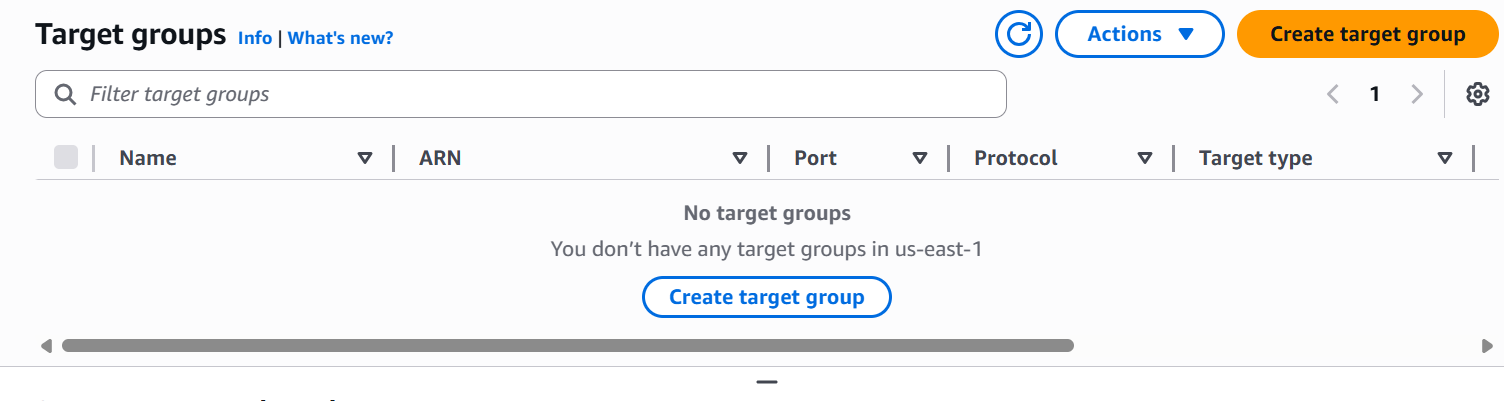
2. Open Target Groups
3. Check target health
It shows healthy.
If it shows unhealthy, follow the instructions below
Kindly confirm the application port is listening
Verify the health check path (e.g /health)
4. Review Security Groups & Network ACLs
Sometimes, a firewall misconfiguration blocks the traffic even though the server is up
1. Security Group:
Allow inbound traffic on:
HTTP (80)
HTTPS (443)
Application port (if custom)
2. Network ACL:
Kindly make sure inbound & outbound rules allow traffic
3. Kindly confirm the source IP is not restricted
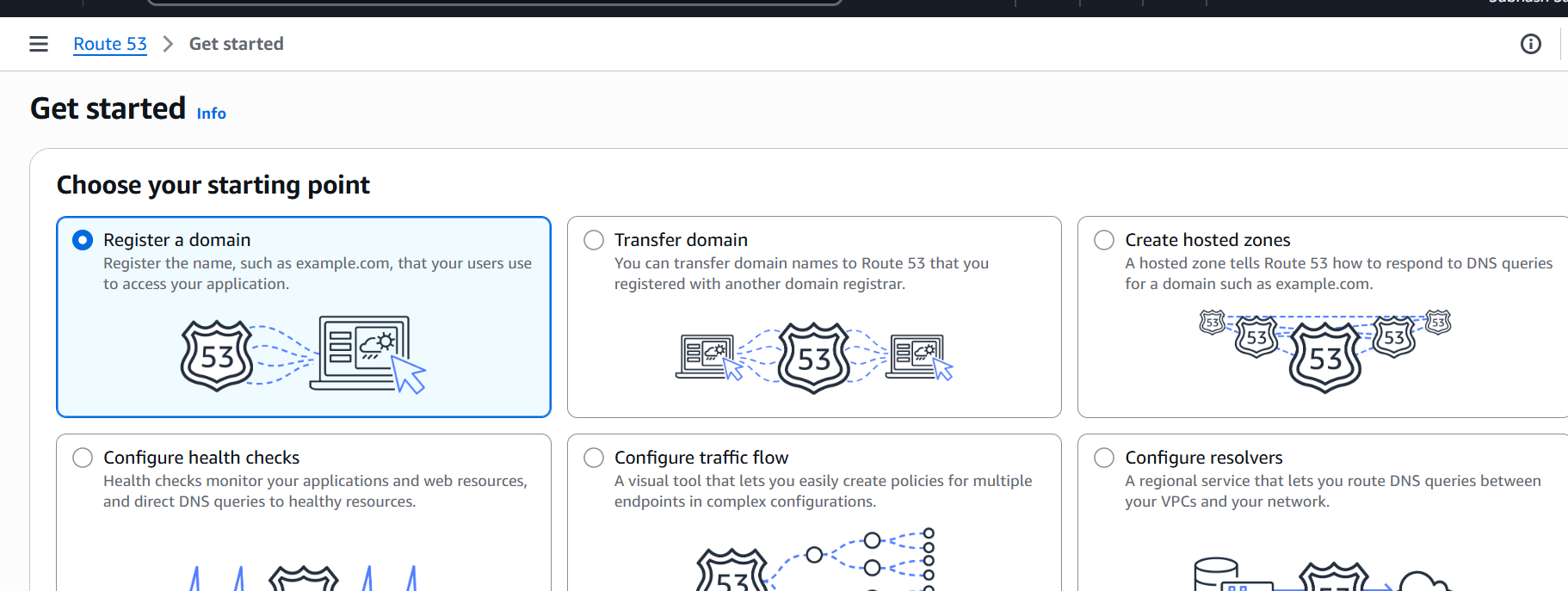
5. Check DNS & Route 53 Records
The DNS might point to the wrong IP or load balancer.
a.Search route
b.Verify:
a.Correct record type (A / CNAME / Alias)
b. Correct target (ELB / EC2 IP)
Kindly test locally.
Nslookup example.com
Ping example.com
Kindly replace example.com with the actual domain
6. Verify Database Connectivity
The application may be down due to a database connection failure.
Check RDS status << Available
Kindly check :
DB security group allows EC2 access
Credentials are correct
Review application DB connection logs
7. Check Disk Space, Memory, and CPU
Low resources can cause the application to crash even when AWS is healthy.
Kindly check the disk space, memory and load on the server
df -hT
Free -m
Top
Clear logs or increase instance size if needed
8. Review Application & System Logs
Checking the logs usually shows the exact issue
Check:
/var/log/messages
/var/log/syslog
CloudWatch Logs (if enabled)
Conclusion
Even when AWS services show a healthy status, your application can still experience downtime due to issues within the application stack, server setup, networking, database connections, or resource usage. AWS guarantees the availability of its infrastructure services, but keeping your application available needs constant monitoring and proper setup of all related components.
By regularly checking EC2 instance health, application services, load balancers, security groups, DNS records, database connections, server resources, and logs, you can quickly find and fix the main cause of most application outages. Taking a proactive approach to monitoring and performing regular maintenance can help reduce downtime, improve reliability, and provide a smooth experience for your users.
Facing issues?
Our technical support
engineers can solve it.


