

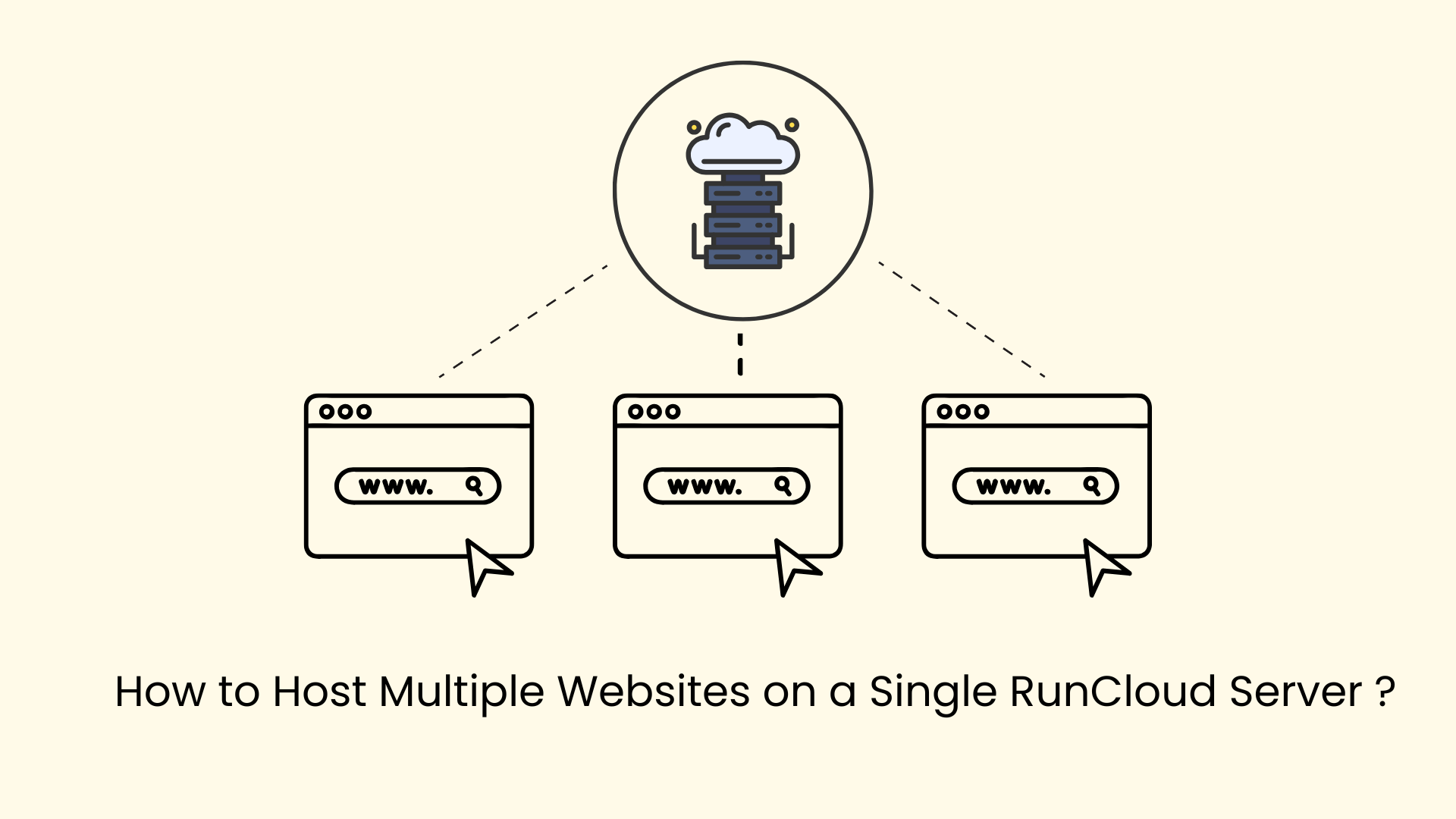
Managing multiple websites doesn’t always require multiple servers. With RunCloud, you can efficiently host and manage several websites on a single server while maintaining performance, security, and flexibility.
RunCloud simplifies server administration by automating configurations such as virtual hosts, PHP environments, firewall management, and backups. This guide walks you through the complete process of setting up and managing multiple websites on one RunCloud server.
Why Host Multiple Websites on One Server?
Hosting multiple websites on a single server offers several advantages:
- Reduced hosting costs
- Centralized server management
- Easier monitoring and maintenance
- Individual configuration control for each website
- Better resource utilization
RunCloud automatically handles virtual host configuration, making multi-site hosting straightforward even for growing businesses or agencies.
Step 1: Create a New Web Application
To host your first website, begin by creating a web application inside RunCloud.
Follow these steps:
- Log in to your RunCloud Dashboard.
- Navigate to Web Application → Create Web App.
- Select the server where you want to host the website.
- Choose your preferred stack:
- Nginx
- Nginx + Apache Hybrid
- Enter your domain name (example:
example.com). - Select a System User (recommended: one user per website).
- Configure PHP settings if required.
- Click Create Web App.
RunCloud will automatically generate the required virtual host configuration for your domain.
Step 2: Add Additional Websites
Hosting multiple websites simply requires repeating the same process.
For every new site:
- Create another Web Application.
- Assign a unique domain name.
- Ensure the domain’s A record points to your server’s IP address.
Each website will have its own:
- Firewall settings
- File manager access
- Backup configuration
- PHP environment
This separation helps maintain security and operational flexibility.
Step 3: Create a New System User (Recommended for Security)
Using separate system users improves isolation between websites and enhances server security.
To create a new system user:
- Go to your Server dashboard.
- Click System Users from the left menu.
- Select Add New System User.
- Enter:
- Username
- Password
- Click Save System User.
You can assign this user while creating a new web application.
Step 4: Change Ownership of an Existing Web Application
If you want to assign a different system user to an existing website:
- Open Web Application.
- Navigate to the Tools menu.
- Click Change Ownership.
- Select the desired system user from the dropdown.
- Click Update Web Application Owner.
This allows you to reorganize permissions without recreating the website.
Step 5: Configure Custom Nginx Settings
RunCloud allows individual server configuration for each website.
To add a custom Nginx configuration:
- Go to Web Application → Nginx Config.
- Click Add New Config.
- Insert your custom directives.
- Save and apply changes.
Custom Nginx configurations are useful for:
- Performance tuning
- Redirect rules
- Security headers
- Advanced caching setups
Step 6: Customize PHP-FPM Configuration
Each website can also have independent PHP performance settings.
To create a custom PHP-FPM configuration:
- Navigate to Web Application → Settings.
- Open FPM Config.
- Add or modify PHP parameters.
- Save the configuration.
This helps optimize memory usage, execution limits, and performance based on individual website needs.
Best Practices for Multi-Site Hosting
- Assign separate system users for every website
- Keep domains properly pointed to the server IP
- Use individual backups for each application
- Monitor server resource usage regularly
- Apply custom configs only when necessary
Following these practices ensures stability and prevents one website from affecting others.
Final Thoughts
Hosting multiple websites on a single server becomes simple and efficient with RunCloud. Its automated virtual host management, flexible user permissions, and per-site configuration options allow developers, agencies, and businesses to scale their hosting environment without complexity.
By properly organizing web applications, system users, and custom configurations, you can run multiple websites securely while maintaining excellent performance.
Looking to simplify server management and host multiple websites efficiently? Our experts can help you set up, optimize, and secure your RunCloud server for maximum performance and reliability. Contact us today to streamline your hosting environment and manage all your websites with confidence.
Facing issues?
Our technical support
engineers can solve it.


