

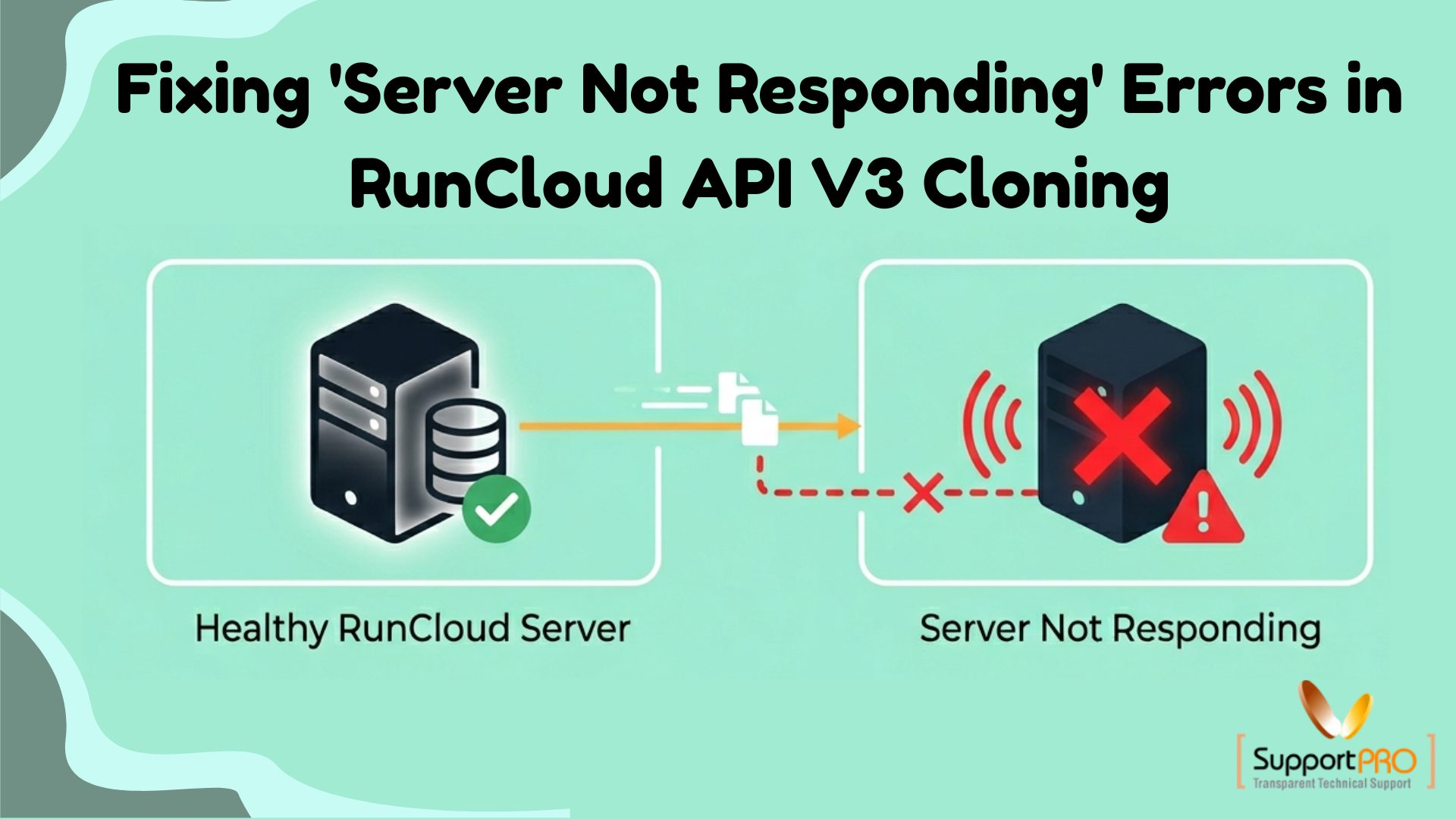
Managing servers through APIs can significantly streamline deployment and administration tasks. However, when using RunCloud API V3 for server cloning operations, users may occasionally encounter the frustrating error:
“Server is not responding. Please try again later.”
This error can interrupt automation workflows and delay server provisioning. Fortunately, in most cases, the issue can be traced to authentication problems, API configuration errors, rate-limit restrictions, or temporary service disruptions.
In this guide, we’ll explore the most common causes of RunCloud API V3 cloning failures and provide practical solutions to get your cloning operations running smoothly again.
Understanding the “Server Not Responding” Error
The “Server is not responding” message is a generic response that can occur when the API is unable to successfully complete a cloning request.
Potential causes include:
- Invalid API credentials
- API rate-limit violations
- Incorrect endpoint usage
- Missing cloning parameters
- Server-side service interruptions
- Misconfigured database settings
Identifying the root cause is essential before applying a solution.
1. Verify Your RunCloud API Authentication Credentials
One of the most common reasons for API cloning failures is incorrect authentication.
RunCloud API V3 uses Basic Authentication, requiring both:
- API Key
- API Secret
These credentials must be included with every API request.
How to Verify Authentication
- Log in to your RunCloud account.
- Navigate to API settings.
- Confirm that the API Key and API Secret are correct.
- Ensure your application is passing both credentials properly in the request headers.
Authentication failures can prevent cloning requests from being processed and may trigger generic server response errors.
2. Check RunCloud Service Status
Sometimes the issue isn’t within your environment at all.
If RunCloud is experiencing:
- Platform outages
- Scheduled maintenance
- API service degradation
cloning operations may fail regardless of your configuration.
What to Do
- Check the RunCloud status page for service updates.
- Review any recent maintenance announcements.
- Contact RunCloud support if the issue appears to be platform-wide.
Verifying service health can save valuable troubleshooting time.
3. Monitor API Rate Limits
RunCloud enforces API rate limits to ensure fair usage and maintain platform stability.
If your application exceeds these limits, requests may be throttled or temporarily blocked.
Review Your API Usage
Navigate to:
Workspace → Settings → API Keys
Monitor:
- Current API usage
- Rate-limit thresholds
- Remaining request quotas
Important Response Headers
Pay attention to:
- X-RateLimit-Limit
- X-RateLimit-Remaining
These headers help you track API consumption and prevent request throttling.
Best Practice
Implement retry mechanisms and request throttling within your application to avoid exceeding allowed limits.
4. Confirm You’re Using the Correct API Endpoint
API versions evolve over time, and using outdated endpoints can lead to unexpected errors.
Verify the Following
- You’re using RunCloud API V3 endpoints.
- Endpoint URLs match the latest API documentation.
- Required request methods (GET, POST, PUT, DELETE) are correct.
Even minor endpoint mismatches can cause cloning operations to fail.
5. Validate Cloning Configuration Parameters
Successful cloning requires specific configuration parameters. Missing or incorrect values can trigger server response errors.
Recommended Clone Parameters
Include the following settings when submitting cloning requests:
{
  "cloneNginxConfig": true,
  "cloneModsec": false,
  "cloneBackup": false
}
These parameters help define which server components should be cloned.
Configure Database Information Properly
Database settings are particularly important during cloning.
Ensure that:
- A new database username is specified.
- sourceDatabaseId matches the database on the source server.
- The selected user ID belongs to a valid system user on the target server.
You can retrieve available users using:
/servers/{serverId}/usersFailing to provide valid database information can prevent the cloning process from completing successfully.
Additional Troubleshooting Best Practices
-> Enable Detailed Logging
Comprehensive logs can reveal:
- Authentication failures
- API response codes
- Validation errors
- Timeout issues
Detailed logs make troubleshooting significantly easier.
-> Implement Retry Logic
Temporary network interruptions or service delays may cause intermittent failures.
Configure automated retries with exponential backoff to improve reliability.
-> Test Requests Independently
Use tools such as:
- Postman
- cURL
- API testing platforms
This helps isolate whether the issue originates from your application code or the API request itself.
Preventing Future RunCloud API Cloning Issues
To ensure reliable cloning operations:
- Regularly rotate and verify API credentials.
- Monitor API consumption and rate limits.
- Keep scripts updated with the latest API documentation.
- Validate all cloning parameters before execution.
- Implement robust logging and error handling.
Proactive monitoring can help prevent unexpected interruptions and improve automation stability.
Conclusion
The “Server is not responding” error during RunCloud API V3 cloning operations can result from several underlying issues, including authentication problems, exceeded rate limits, incorrect endpoint usage, or incomplete cloning configurations.
By systematically validating your API credentials, monitoring service status, reviewing rate limits, and ensuring all required cloning parameters are correctly configured, you can quickly identify and resolve the root cause.
A structured troubleshooting approach not only fixes current cloning failures but also helps build more reliable and scalable server automation workflows.
If you’re still experiencing issues with RunCloud API cloning, expert assistance can help diagnose and resolve the problem faster.
Need help troubleshooting RunCloud API errors or server cloning issues?
SupportPro’s server management experts can help diagnose API failures, optimize automation workflows, and ensure reliable RunCloud deployments. Contact our team today for professional support and infrastructure assistance.
Facing issues?
Our technical support
engineers can solve it.


