


Data loss can have serious consequences for any organization, making reliable backup and recovery strategies essential. Whether caused by accidental deletion, system failures, ransomware attacks, or infrastructure issues, having a dependable backup solution helps ensure business continuity and minimizes downtime.
AWS Backup simplifies backup management across AWS services, including Amazon Elastic Block Store (EBS). With AWS Backup, organizations can automate backup schedules, define retention policies, and restore data quickly when needed.
In this guide, we’ll explore Amazon EBS, the benefits of AWS Backup, and the step-by-step process for backing up and restoring EBS volumes.
What is Amazon EBS?
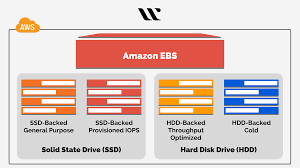
Amazon Elastic Block Store (EBS) is a high-performance block storage service designed for use with Amazon EC2 instances. EBS volumes provide persistent storage, meaning data remains intact even if an EC2 instance is stopped or terminated.
Key benefits of Amazon EBS include:
- Persistent and durable storage
- High availability and reliability
- SSD and HDD volume options
- Scalability for varying workloads
- Seamless integration with Amazon EC2
EBS volumes are commonly used for databases, enterprise applications, file systems, and mission-critical workloads that require consistent performance.
Why Use AWS Backup for Amazon EBS?
AWS Backup is a fully managed service that centralizes and automates data protection across AWS resources.
Benefits include:
-> Automated Backup Scheduling
Create backup plans that automatically protect EBS volumes based on defined schedules.
-> Centralized Backup Management
Manage backups across multiple AWS services from a single console.
-> Retention Policy Control
Define how long backups should be retained to meet compliance and business requirements.
-> Secure Backup Storage
Protect backup data using AWS Key Management Service (KMS) encryption.
-> Faster Disaster Recovery
Restore EBS volumes quickly to reduce downtime and maintain operational continuity.
Prerequisites
Before creating backups, ensure you have:
- An active AWS account
- An IAM user with appropriate permissions
- An EC2 instance with attached EBS volumes
- AWS Backup service enabled
- A backup vault for storing recovery points
Creating an On-Demand Amazon EBS Backup
An on-demand backup is useful when you need an immediate backup before system updates, migrations, or major application changes.
Step 1: Open AWS Backup Console
- Sign in to the AWS Management Console.
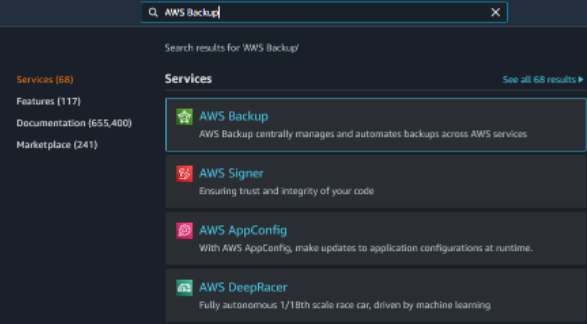
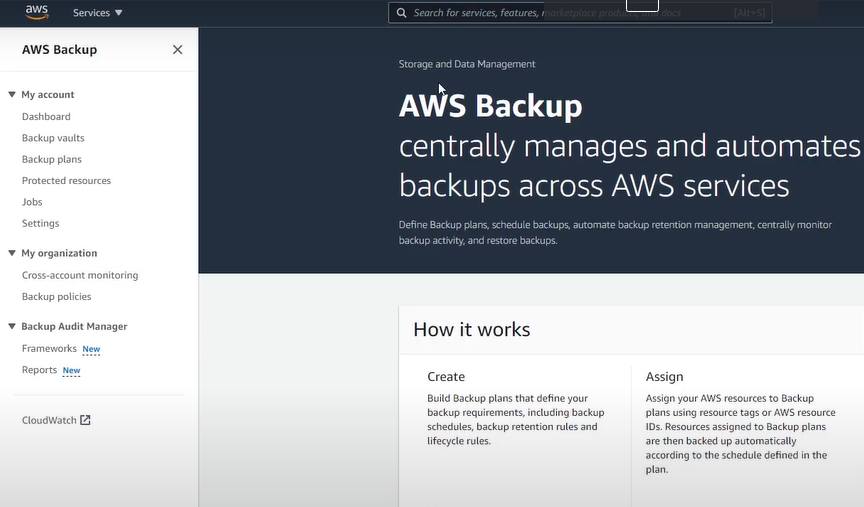
- Navigate to AWS Backup.
- Select Settings and enable Amazon EBS under resource configuration.
Step 2: Create an On-Demand Backup
- From the AWS Backup Dashboard, click Create On-Demand Backup.
- Select Amazon EBS as the resource type.
- Choose the EBS volume you want to protect.
- Select Create Backup Now.
Step 3: Configure Backup Settings
Specify the following:
- Backup Vault
- Retention Period
- Encryption Key (AWS KMS)
- IAM Role
Click Create On-Demand Backup to start the backup process.
Step 4: Monitor Backup Status
Navigate to:
AWS Backup → Jobs → Backup Jobs
The backup status will move through stages such as:
- Created
- Running
- Completed
Once completed, a recovery point is stored in the selected backup vault.
Automating Amazon EBS Backups with Backup Plans
For ongoing protection, AWS Backup allows you to automate backups using backup plans.
Step 1: Create a Backup Plan
- Open AWS Backup.
- Select Backup Plans.
- Click Create Backup Plan.
You can either:
- Build a custom plan
- Use a predefined template
Step 2: Configure Backup Rules
Define:
- Backup frequency (daily, weekly, monthly)
- Backup window
- Retention period
- Backup vault destination
For most workloads, daily backups with appropriate retention provide reliable protection.
Step 3: Assign Resources
After creating the plan:
- Select Assign Resources.
- Provide a resource assignment name.
- Choose an IAM role.
- Assign resources using:
- Resource IDs
- Tags
This allows AWS Backup to automatically protect selected EBS volumes.
Step 4: Verify Scheduled Backups
Navigate to:
AWS Backup → Jobs → Backup Jobs
AWS Backup will automatically create backups based on the configured schedule.
Restoring an Amazon EBS Volume
When data recovery is required, AWS Backup enables you to restore EBS volumes from available recovery points.
Step 1: Locate the Recovery Point
- Open AWS Backup.
- Navigate to Backup Vaults.
- Select the vault containing your backup.
- Choose the latest completed recovery point.
Step 2: Start the Restore Process
- Select the Recovery Point ARN.
- Click Restore.
AWS Backup displays the restore configuration screen.
Step 3: Configure Restore Settings
Select:
- Resource Type: Amazon EBS Volume
- Volume Type (gp3, gp2, io2, etc.)
- Volume Size
- Availability Zone
- IAM Role
Review the configuration and click Restore Backup.
Step 4: Monitor Restore Progress
Navigate to:
AWS Backup → Restore Jobs
Wait for the restore job status to change to Completed.
Attach the Restored Volume to an EC2 Instance
After restoration:
- Open the Amazon EC2 Console.
- Select Elastic Block Store → Volumes.
- Locate the restored volume.
- Attach it to the desired EC2 instance.
- Mount the volume within the operating system.
Once attached, the restored files and directories become accessible.
Best Practices for Amazon EBS Backups
To maximize data protection and recovery efficiency:
- Automate backups using AWS Backup Plans.
- Store backups in dedicated backup vaults.
- Enable encryption with AWS KMS.
- Test restore procedures regularly.
- Implement retention policies aligned with compliance requirements.
- Monitor backup and restore jobs frequently.
- Use tags to simplify resource assignment and management.
Common Use Cases
AWS Backup for Amazon EBS is ideal for:
> Disaster Recovery
Recover critical workloads after hardware failures or accidental data loss.
> Compliance Requirements
Meet regulatory standards by maintaining scheduled backups and retention policies.
> Migration Projects
Create backups before infrastructure upgrades or workload migrations.
> Business Continuity
Ensure critical applications remain recoverable during unexpected disruptions.
Conclusion
Amazon EBS provides reliable and scalable storage for AWS workloads, but protecting that data requires a robust backup strategy. AWS Backup simplifies the process by automating backups, enforcing retention policies, and enabling fast recovery when needed.
By implementing on-demand and scheduled EBS backups, organizations can strengthen disaster recovery capabilities, reduce operational risks, and ensure business continuity across cloud environments.
Protect Your AWS Data with SupportPro
Managing backup policies, disaster recovery planning, and AWS infrastructure can be complex. SupportPro’s AWS specialists help businesses implement secure, automated backup solutions that ensure data protection and rapid recovery.
Contact SupportPro today to optimize your AWS backup strategy and keep your critical workloads protected.
Facing issues?
Our technical support
engineers can solve it.


