

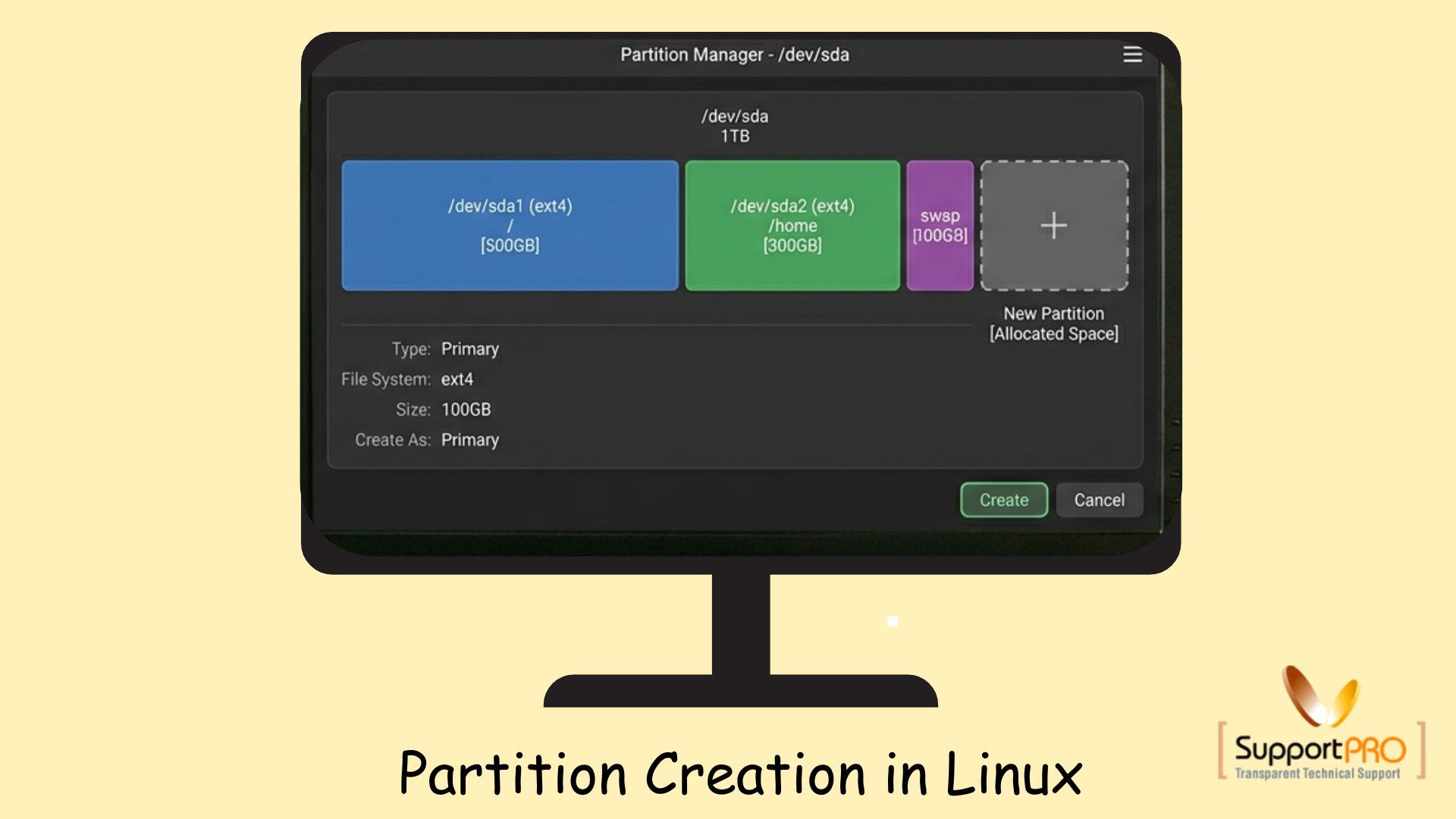
Managing disk partitions is an essential task for Linux system administrators. Proper disk partitioning helps organize storage, improve performance, and simplify server management. Whether you are setting up a new server or adding additional storage, understanding Partition creation in Linux is extremely important.
In this guide, we will explain how to create partitions, format them, mount them, and make the configuration permanent using Linux commands.
What is Partition Creation?
Partition creation is the process of dividing a physical hard disk into separate logical sections called partitions.
Each partition can:
- Store files independently
- Use different file systems
- Be mounted to different directories
- Serve specific purposes such as backups, databases, or application storage
Linux systems commonly use partitions to organize storage efficiently.
Why Partitioning is Important
Disk partitioning provides several advantages:
- Better disk management
- Improved data organization
- Easier backups and recovery
- Separation of system and user data
- Better security and performance management
For servers, partitioning also helps isolate workloads and reduce storage-related issues.
Step 1: Check Existing Disks and Partitions
Before creating a new partition, first identify the available disks and existing partitions.
Run:
fdisk -lThis command displays:
- Available hard disks
- Existing partitions
- Disk sizes
- Mounted storage devices
Example devices may appear as:
/dev/sda
/dev/sdb
/dev/sdc
Carefully identify the correct disk before proceeding.
Step 2: Create a New Partition
Now create a partition on the selected disk.
Run:
fdisk /dev/sdXReplace sdX with the appropriate disk name.
Example:
fdisk /dev/sdbInside the fdisk utility, you can:
- Create new partitions
- Delete unwanted partitions
- Change partition types
- Set partition sizes
Common fdisk Options
| Option | Function |
|---|---|
n | Create new partition |
d | Delete partition |
p | Print partition table |
w | Save changes and exit |
q | Quit without saving |
Creating a New Partition
Typical process:
- Press
nfor new partition - Select primary or extended partition
- Choose partition number
- Specify partition size
- Press
wto save changes
After saving, the partition table gets updated.
Step 3: Create a File System
After partition creation, the partition must be formatted with a file system.
For EXT3 format, run:
mkfs.ext3 /dev/sda1You can also use newer file systems such as:
- ext4
- xfs
- btrfs
Example using ext4:
mkfs.ext4 /dev/sda1This step prepares the partition for storing files.
Step 4: Update Kernel Partition Table
Linux must reload the updated partition table.
Instead of rebooting the server, use:
partprobeThe partprobe command informs the kernel about the new partition changes immediately.
This is especially useful for production servers where rebooting may cause downtime.
Step 5: Mount the Partition
Now mount the partition to a desired directory.
First create a mount point:
mkdir /dataThen mount the partition:
mount /dev/sda1 /dataThis attaches the partition to the /data directory.
Verify Mounted Partitions
Use:
df -hThis command shows:
- Mounted partitions
- Disk usage
- Available storage
- Mount locations
Step 6: Make the Mount Permanent
Temporary mounts disappear after reboot. To make the mount permanent, add an entry to:
/etc/fstabOpen the file:
vi /etc/fstabAdd an entry like:
/dev/sda1 /data ext4 defaults 0 0Save and exit.
Test the fstab Configuration
Before rebooting, verify the configuration using:
mount -aIf no errors appear, the configuration is correct.
Important Tips Before Partition Creation
Backup Important Data
Partitioning operations may accidentally erase data if performed incorrectly.
Always:
- Backup important files
- Verify the correct disk name
- Double-check partition selections
Use GPT for Large Disks
For disks larger than 2TB, GPT partition tables are recommended instead of MBR.
You can create GPT partitions using tools like:
gdiskparted
Monitor Disk Health
Before partitioning, check disk health using SMART tools:
smartctl -a /dev/sdaThis helps identify hardware issues early.
Common Linux File Systems
| File System | Description |
|---|---|
| ext3 | Older journaling filesystem |
| ext4 | Modern Linux standard filesystem |
| xfs | High-performance filesystem |
| btrfs | Advanced filesystem with snapshots |
Most modern Linux servers use ext4 or xfs.
Conclusion
Understanding Partition creation in Linux is a fundamental skill for server administration. Proper partitioning helps improve storage organization, server management, and system reliability.
The basic process includes:
- Checking available disks
- Creating partitions using
fdisk - Formatting with a file system
- Reloading partition tables
- Mounting partitions
- Updating
/etc/fstab
With careful planning and proper backups, partition management in Linux becomes straightforward and efficient.
If you require help, contact SupportPRO Server Admin
Facing issues?
Our technical support
engineers can solve it.


