

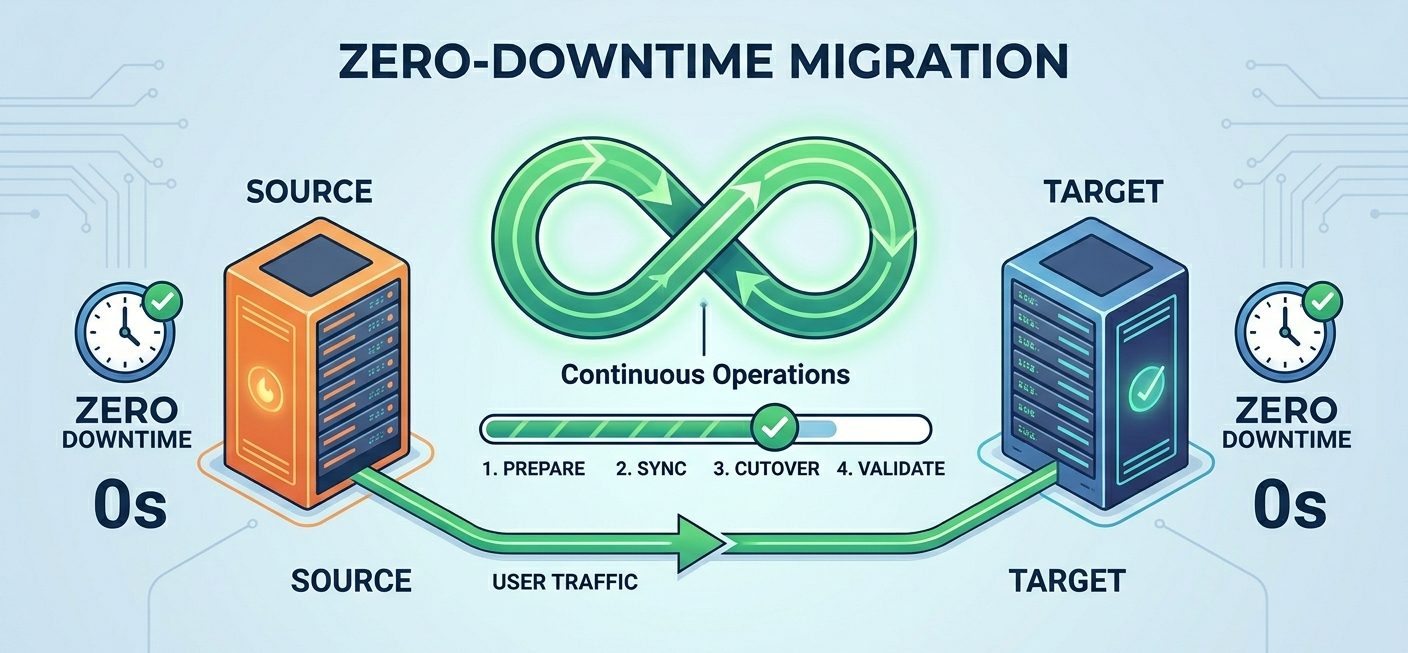
If you manage a website, you’ll likely encounter server migration at some point. This could be due to upgrading to a more powerful server, switching service providers, or updating your software environment for better performance and security.
Despite its benefits, server migration often raises concerns – such as data loss, downtime, or website instability. The good news is that with proper planning and execution, you can migrate your web server with zero downtime and no data loss.
Let’s walk through the process step by step.
1. Prepare Your DNS
When migrating to a new server, your website will typically be assigned a new IP address. However, DNS records are cached globally, which means changes can take up to 48 – 72 hours to propagate.
To minimize delays:
- Reduce the TTL (Time To Live) value of your DNS records in advance.
- A lower TTL ensures faster DNS updates during the migration.
This is a crucial first step to ensure a smooth transition.
2. Set Up Your New Server
Before moving any data:
- Install the required operating system
- Ensure hardware meets your application requirements
- Assign and configure the new IP addresses
Your new server should be fully prepared to handle production workloads.
3. Optimize and Secure the Server
This is the best time to configure your server environment:
- Set up disk partitions and file systems
- Configure RAID (if needed)
- Implement security measures such as firewalls and OS hardening
Completing these tasks early is easier before data is added.
4. Install Required Applications
Once the server is ready:
- Install core services such as:
- Web server (e.g., Nginx/Apache)
- Database server
- Email services
- PHP or other runtime environments
- Verify that all services are running correctly.
5. Start Data Migration
With the environment in place, begin transferring your data:
- Website files and application code
- Databases
- Email configurations
- Logs and cache files
This initial sync ensures most of your data is already on the new server.
6. Go Live with the New Server
After verifying everything:
- Update your domain’s DNS records to point to the new server IP
- Monitor traffic and performance closely
With proper TTL settings, the transition should be seamless.
Data Migration Methods
Using Control Panels (cPanel, Plesk, etc.)
Control panels simplify migrations significantly.
cPanel to cPanel Migration
- Log in to WHM as the root user on the new server
- Navigate to:
“Copy Multiple Accounts/Packages from Another Server” - Enter source server details and click “Fetch Account List”
- Select accounts to transfer and initiate migration
cPanel also supports migration from other control panels.
Without a Control Panel (Using Rsync)
For manual migrations, rsync is a powerful and efficient tool.
Basic Rsync Command
rsync -avz -e ssh /home root@remote_server_ip:/homeOptions explained:
-v→ Verbose output-a→ Archive mode (preserves permissions, timestamps, etc.)-z→ Compress data during transfer--progress→ Shows transfer progress
Excluding System Files
Avoid copying system-specific directories such as:
/boot/proc/dev
These directories are tied to the server’s hardware and runtime environment and should not be overwritten.
Example with Exclusions
rsync -avz -e ssh --exclude-from="/home/exclude.txt" /home root@remote_server_ip:/homeFinalizing the Migration
The first sync transfers most of your data, but some files may still change during the process—especially:
- Active databases
- Frequently updated directories
To ensure complete consistency:
- Stop related services (e.g., database, web server)
- Update your exclude list if needed
- Run rsync again for a final sync
This ensures all data is fully up to date.
Conclusion
Server migration doesn’t have to be stressful. By following a structured approach – preparing DNS, configuring your new server, and carefully migrating data – you can achieve a smooth transition with zero downtime and no data loss.
Proper planning is the key to a successful migration.
If you require help, contact SupportPRO Server Admin
Facing issues?
Our technical support
engineers can solve it.


