

If you have ever launched a Google Cloud Virtual Machine (VM) only to discover that your startup script didn’t run as expected, you’re not alone. Startup scripts are incredibly useful for automating server configuration, installing software, and preparing instances for workloads. When startup scripts fail, they may leave your VM incomplete or unable to function properly.
Most startup script failures stem from a handful of common issues and can be resolved with a systematic troubleshooting approach.
In this guide, we will walk through the most frequent causes of startup script failures in Google Cloud Platform (GCP) and show you how to diagnose and fix them without unnecessary frustration.
- What Are Startup Scripts?
Startup scripts are commands or scripts that execute automatically every time a Compute Engine VM starts. They are commonly used to:
- Install packages
- Configure applications
- Create users and permissions
- Mount storage volumes
- Download files from Cloud Storage
- Start services automatically
Because these scripts run without manual intervention, they help maintain consistent server deployments and reduce setup time.
However, if something goes wrong, the VM may boot successfully while the intended configuration never completes.
Example – Basic Linux Startup Script
Simple Startup-Script which Updates package repositories, Installs NGINX , Enables the service and starts the web server automatically whenever the VM boots .
#!/bin/bash
echo “Startup Script Started”
apt-get update -y
apt-get install nginx -y
systemctl enable nginx
systemctl start nginx
echo “Deployment Completed”
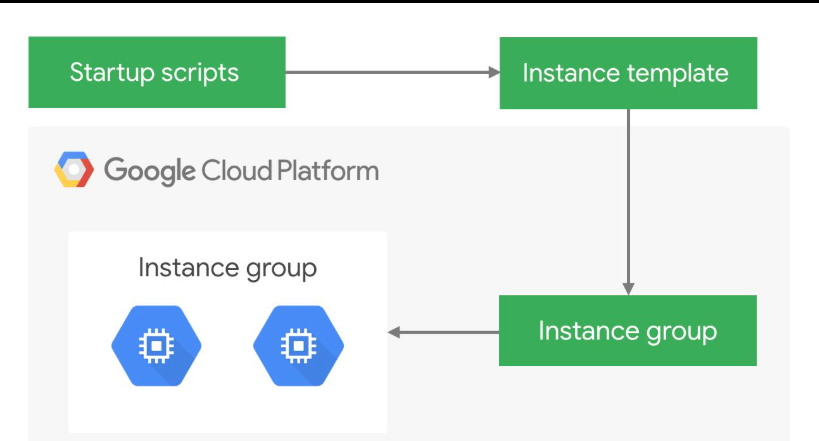
- Step 1: Verify That the Startup Script Exists
Before diving into logs, confirm that the VM actually has a startup script configured.
In the Google Cloud Console:
- Navigate to Compute Engine
- Open VM Instances
- Select your instance
- Check the Metadata section
Look for entries such as:
- startup-script
- startup-script-url
Sometimes the wrong metadata key is used, or the script was accidentally removed during an instance update.
If the metadata isn’t present, the startup script won’t execute at all.
- Step 2: Review the Serial Port Logs
One of the quickest ways to diagnose startup issues is through the VM’s serial console output.
Startup scripts typically write messages during boot, making the serial console an excellent place to identify:
- Syntax errors
- Permission issues
- Package installation failures
- Network connectivity problems
If the script stops halfway through, the last logged message often reveals exactly where the failure occurred.
Instead of guessing, let the logs guide your investigation.
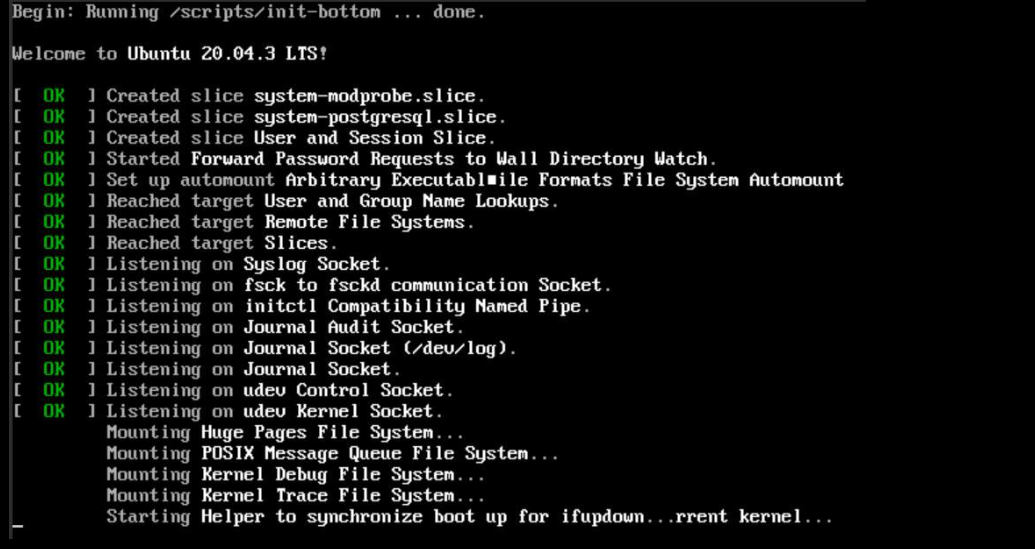
Example output:
Startup Script Started
Reading package lists…
Building dependency tree…
Installing nginx…
Created symlink /etc/systemd/system/multi-user.target.wants/nginx.service
Deployment Completed
If an error occurs:
apt-get: Temporary failure resolving archive.ubuntu.com
Startup Script Failed
This immediately tells you the VM has a DNS or networking issue.
- Step 3: Check the Guest Agent Status
Google Cloud relies on the guest agent running inside the VM to execute metadata-based startup scripts.
If the guest agent is:
- Not installed
- Disabled
- Crashed
- Outdated
the startup script may never run.
Verify that the guest environment services are installed and running properly. Restarting the guest agent often resolves issues caused by temporary failures.
Keeping your VM image updated also helps avoid compatibility problems.
- Step 4: Validate Script Syntax
A surprisingly common cause of startup failures is a simple scripting mistake.
Examples include:
- Missing quotation marks
- Incorrect shell syntax
- Invalid variable references
- Missing “fi” or “done” statements
- Incorrect indentation in Python scripts
Always validate your script locally and run a shell syntax check before uploading it to GCP.
Even one misplaced character can stop the entire script from executing.
Breaking large startup scripts into smaller functions also makes debugging much easier.
- Step 5: Confirm Network Connectivity
Many startup scripts rely on downloading packages or files during execution.
Examples include:
- apt update
- yum install
- wget
- curl
- gsutil commands
If the VM cannot reach the internet or required Google services, these commands will fail.
Check:
- Firewall rules
- VPC routes
- Cloud NAT configuration (for private instances)
- DNS resolution
- External IP assignment
A startup script that depends on external resources cannot complete if the network isn’t available.
- Step 6: Verify Permissions and Service Accounts
Startup scripts often interact with other Google Cloud services.
For example, they may:
- Read from Cloud Storage
- Access Secret Manager
- Retrieve configuration from Cloud SQL
- Pull container images
- Access Artifact Registry
If the attached service account lacks the required IAM permissions, these operations will fail.
Always verify that the VM’s service account has only the permissions it needs—but enough to complete the startup tasks successfully.
Permission-related errors are among the easiest to overlook.
- Step 7: Ensure Required Services Are Available
Startup scripts sometimes attempt to start applications before the operating system has finished initializing all services.
For example:
- Docker may not yet be running.
- Network interfaces may not be fully initialized.
- Mounted disks may not be available.
- Databases may still be starting.
Adding small retry loops or waiting for required services before continuing can significantly improve script reliability.
Rather than assuming everything is immediately available, let the script verify dependencies before proceeding.
- Step 8: Check File Permissions
If your startup script references local files, ensure they have the correct permissions.
Common issues include:
- Script not marked as executable
- Incorrect ownership
- Missing directories
- Incorrect file paths
Running a command from a non-existent location or without execute permissions can halt the automation process.
Using absolute file paths instead of relative ones also helps prevent unexpected behavior.
- Step 9: Make Scripts Idempotent
Startup scripts may run every time the virtual machine (VM) starts.
If the script installs software that’s already installed or attempts to recreate existing resources, it may fail on subsequent runs.
A better approach is to write idempotent scripts that first check whether an action has already been completed.
For example:
- Verify package installation before installing.
- Check if directories already exist.
- Confirm services are already running.
- Skip completed configuration steps.
This makes the script safe to execute multiple times without causing errors.
- Best Practices to Prevent Startup Script Failures
While troubleshooting is important, preventing failures is even better.
Follow these best practices:
- Keep startup scripts modular and easy to read.
- Test scripts on a temporary VM before production deployment.
- Add meaningful logging throughout the script.
- Include proper error handling.
- Avoid hardcoded credentials.
- Use retry logic for network-dependent operations.
- Keep VM images and guest agents updated.
- Store complex scripts in version control for easier maintenance.
- Final Thoughts
Startup scripts are one of Google Cloud’s most powerful automation features, allowing you to deploy consistent, ready-to-use virtual machines with minimal manual effort. However, even a small mistake in configuration, permissions, networking, or script logic can prevent them from running successfully.
Rather than troubleshooting randomly, take a structured approach. Start by verifying the startup script configuration, review serial console logs, validate the guest agent, inspect permissions, confirm network connectivity, and carefully test your script’s logic. In most cases, these steps will quickly reveal the root cause.
With well-tested, idempotent startup scripts and proper monitoring, you can minimize deployment issues, improve reliability, and ensure your Compute Engine instances are fully configured every time they boot.
Facing issues?
Our technical support
engineers can solve it.


