

Unexpected virtual machine (VM) reboots can be frustrating, especially when they occur without warning and interrupt running applications or services. Whether you’re hosting a website, running a database, or managing production workloads, an unexpected reboot can lead to downtime, failed transactions, and confused users.
Fortunately, not every unexpected reboot is a sign of a serious problem. In Google Cloud Platform (GCP), VM reboots can happen for several reasons from scheduled maintenance and operating system updates to resource exhaustion or application crashes. Successful troubleshooting starts with knowing where to look and how to identify the underlying cause.
In this guide, we will explore the most common reasons behind unexpected VM reboots in GCP and walk through practical troubleshooting steps to get your instances back to stable operation.
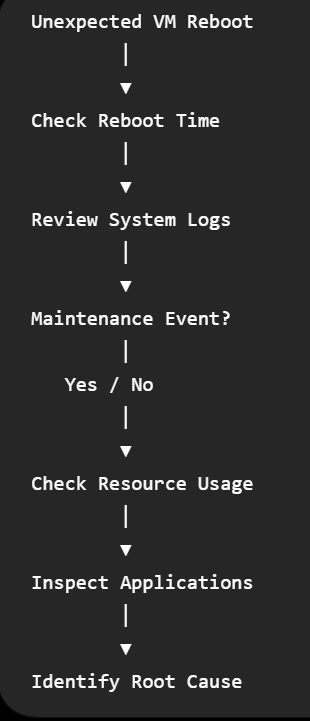
- Start by Determining When the Reboot Happened
The first step is to identify exactly when the reboot occurred. Knowing the approximate time helps narrow down the possible causes and makes it easier to correlate logs and events.
You can check the VM uptime using:
Uptime
Or view the last reboot time with:
who -b
If the reboot happened recently, compare the timestamp with application logs, system logs, and Cloud Logging entries to see what was happening just before the restart.
- Check for Scheduled Maintenance Events
One of the most common reasons for VM reboots in GCP is host maintenance.
Google regularly performs maintenance on the physical infrastructure that hosts Compute Engine instances. Depending on your VM configuration and machine type, Google may either live migrate your VM or restart it during maintenance.
To verify whether maintenance was responsible, review your VM’s activity logs and maintenance events in the Google Cloud Console.
If your workload supports live migration, enabling it can significantly reduce downtime during infrastructure maintenance.
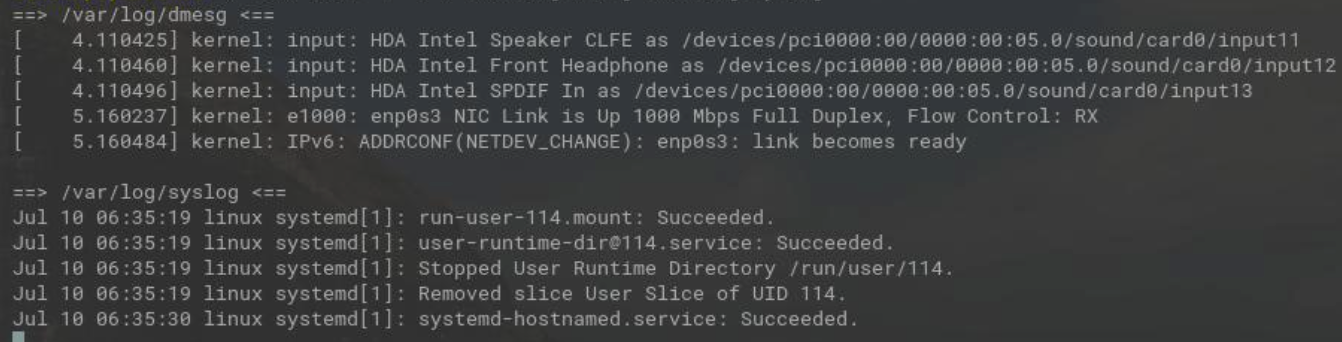
- Review System Logs for Clues
System logs are often the best place to start your investigation.
On Linux VMs, examine logs such as:
- /var/log/syslog
- /var/log/messages
- journalctl
Look for messages immediately before the reboot, such as:
- Kernel panic
- Out of Memory (OOM) Killer
- Filesystem errors
- Hardware-related warnings
- Service crashes
Even a single log entry can provide valuable insight into what caused the restart.
- Check for Resource Exhaustion
A VM that’s running out of memory or CPU resources may become unstable.
High resource usage can lead to:
- Application crashes
- Kernel OOM events
- Unresponsive services
- Forced reboots in extreme situations
Review your VM’s monitoring metrics for:
- CPU utilization
- Memory usage
- Disk I/O
- Network traffic
If you consistently observe high utilization before each reboot, it may be time to resize the VM or optimize the applications running on it.
- Investigate Operating System Updates
Many Linux distributions automatically install security updates, and some updates require a reboot to complete.
Similarly, Windows Server instances may restart after installing patches if automatic updates are enabled.
Check your package manager logs or Windows Update history to determine whether an update triggered the reboot.
Scheduling maintenance windows for updates helps avoid unexpected restarts during business hours.
- Look for Kernel Panic Messages
Kernel panics are serious operating system failures that can immediately restart a VM.
Common causes include:
- Faulty kernel modules
- Driver incompatibilities
- Filesystem corruption
- Memory-related issues
Search your logs for messages containing:
- “Kernel panic”
- “Oops”
- “Fatal exception”
If kernel panics occur repeatedly, consider updating the kernel or rolling back any recently installed drivers or software.
- Verify Application Behavior
Sometimes the operating system isn’t responsible at all.
High memory usage, excessive process creation, or frequent watchdog triggers from applications can lead to system instability.
Ask yourself:
- Did the reboot happen after deploying a new application?
- Was a software update recently installed?
- Are scheduled jobs consuming excessive resources?
Checking application logs alongside system logs often reveals patterns that point to the true cause.
- Review Automatic Restart Settings
Google Compute Engine provides an automatic restart option that restarts instances after unexpected failures.
While this feature improves availability, it can sometimes make administrators think the VM rebooted on its own.
Review your VM settings to confirm whether automatic restart is enabled.
Understanding your instance’s restart policy helps explain why a VM came back online automatically after a failure.
- Monitor Disk Health
Storage issues can also contribute to unexpected system behavior.
Look for signs such as:
- Filesystem corruption
- Read/write errors
- Disk latency spikes
- Mount failures
Running periodic filesystem checks and monitoring persistent disk performance can help identify storage-related problems before they affect system stability.
- Enable Monitoring and Alerts
Proactive monitoring helps you detect unexpected reboots before users experience service disruptions.
Google Cloud Monitoring allows you to create alerts for:
- High CPU usage
- Memory utilization
- Disk space
- VM uptime
- Unexpected instance restarts
Receiving alerts before resources become critical gives administrators time to investigate before service interruptions occur.
- Best Practices to Prevent Unexpected Reboots
While some maintenance events are unavoidable, many unexpected reboots can be prevented with good operational practices.
Here are a few recommendations:
- Keep operating systems and guest agents up to date.
- Monitor CPU, memory, and disk utilization regularly.
- Schedule operating system updates during maintenance windows.
- Test kernel or application updates before deploying them to production.
- Configure Cloud Monitoring alerts for abnormal resource usage.
- Regularly review system logs for recurring warnings.
- Use managed instance groups for high-availability workloads.
- Maintain recent backups before major system changes.
These simple practices can greatly improve the stability and reliability of your Compute Engine instances.
- Final Thoughts
Unexpected VM reboots can be alarming, but they rarely happen without leaving clues behind. Whether the cause is scheduled maintenance, operating system updates, resource exhaustion, application failures, or kernel issues, a structured troubleshooting process makes it much easier to identify the root cause.
Rather than jumping to conclusions, begin by checking reboot timestamps, reviewing system logs, monitoring resource usage, and verifying maintenance events. Over time, combining proactive monitoring with regular system maintenance will help reduce unexpected interruptions and keep your GCP workloads running smoothly.
By understanding why reboots occur and preparing your infrastructure accordingly, you can minimize downtime, improve system reliability, and respond to incidents with greater confidence.
Facing issues?
Our technical support
engineers can solve it.


